Claude Code Ultraplan: A Hands-On Guide for 2026
Claude Code Ultraplan moves your planning to the cloud while your terminal stays free. Here is what it does, how to use it, and when it actually helps.
The biggest annoyance with Claude Code’s plan mode has always been that long plans are painful to read in a terminal. You scroll, you lose your place, you type a revision request, you scroll again. For a small change this is fine. For a forty-step migration it is awful.
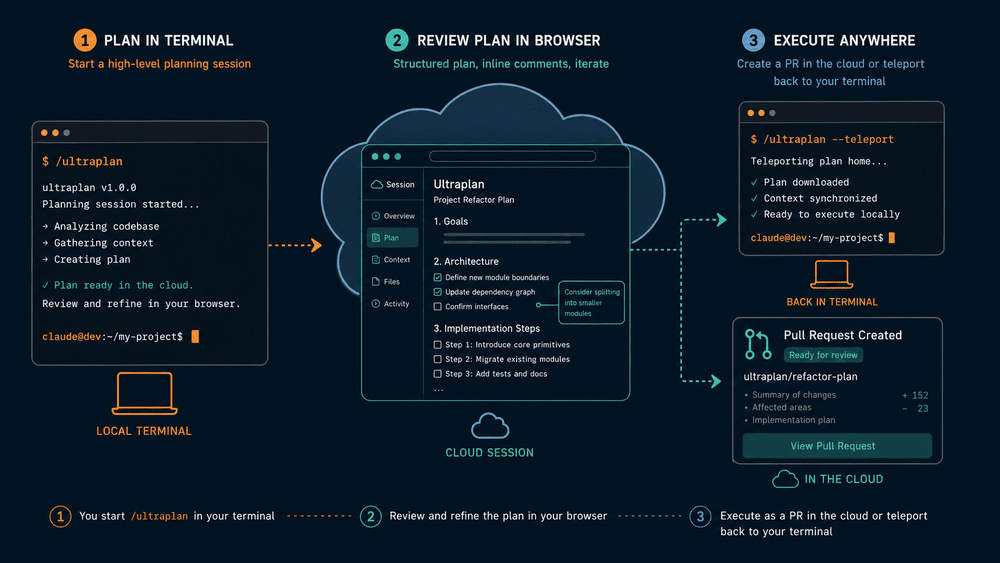
Ultraplan is Anthropic’s answer to that. It is a research preview feature that takes your planning task, sends it to a cloud session of Claude Code running in plan mode, and gives you a browser interface to review the plan with inline comments and section navigation. Your terminal stays free the whole time.
I have been using it for a few weeks on real work. This guide covers what it actually is, the three ways to launch it, what the review interface looks like, and when it is worth using versus the local plan mode you already know.
Ultraplan is a way to run plan mode in the cloud instead of in your terminal. You invoke it from the CLI, Claude drafts the plan in a remote container, and you review and refine it in a browser. When the plan is ready, you can either let Claude implement it in the same cloud session or pull the plan back to your local machine to run yourself.
The problem it solves
If you have used /plan in Claude Code, you already know the loop. You describe a task, Claude reads your repo, drafts a plan, and shows it to you. You read it, ask for changes, get a new version, repeat. The plan eventually looks right and you approve it.
This works well for small jobs. For larger ones it falls apart in three places.
First, the plan gets long. A real architectural change might be twenty or thirty steps, and reading that in a scrolling terminal is harder than it should be. You cannot mark a specific paragraph and say “this part is wrong, leave the rest alone.” You have to describe the location in words and hope Claude understands.
Second, your terminal is stuck. While the plan is being drafted and revised, that window is busy. You can open another terminal, but anything that depends on context from this one is on hold.
Third, plan iteration is private to one machine. If a teammate has feedback, you have to copy the plan into Slack or a doc and lose all the structure.
Ultraplan addresses all three. The plan lives in a web view with proper text selection, inline comments, and an outline sidebar. The terminal returns to you the moment the cloud session starts. The plan has a shareable URL.
How it works
The flow has three phases. Once you have run it once, it becomes second nature.
Phase 1: provisioning
When you invoke Ultraplan, a few things happen behind the scenes:
- Anthropic spins up an ephemeral cloud container.
- The container clones your repository from GitHub.
- If your repo has a setup script, it runs to install dependencies.
- Claude Code initializes inside the container.
This takes about fifteen to thirty seconds the first time. The cost is paid against your existing Pro or Max plan, not as a separate line item, which is one of the things that makes it pleasant to use casually.
Phase 2: drafting
Claude reads the repo, thinks about your task, and writes a structured plan. While this is happening, your terminal shows a small status line and you can keep working on other things. The status moves through a few states:
◇ ultraplan— drafting in progress◇ ultraplan needs your input— Claude has a clarifying question◆ ultraplan ready— the plan is ready for review in the browser
You can run /tasks at any time to see the status, open the session link, or stop the plan if you no longer need it.
Phase 3: review and execute
When the plan is ready, you open the browser view. This is where Ultraplan earns its keep.
The interface gives you three things the terminal cannot:
- Inline comments. Highlight any sentence and leave a note for Claude to address. Claude reads the comments and produces a revised plan that incorporates them.
- Emoji reactions. React to a section with a thumbs up or a thinking face to signal approval or doubt without writing a full comment. Useful when most of the plan looks right and you want to flag the one section that worries you.
- Outline sidebar. Jump between sections by title. For a long plan this is the difference between thirty seconds and three minutes of finding a specific step.
Once the plan looks right, you choose where to execute it. You can let Claude run the plan in the same cloud session, which opens a pull request on GitHub when it finishes. Or you can teleport the plan back to your terminal and run it locally, which is what you want if the work touches local services, private dependencies, or anything that does not live on GitHub.
The three ways to launch it
There is no single canonical way to start an Ultraplan session. Anthropic gave you three, and the right one depends on how you were already thinking about the task.
Method one: the slash command
The most direct route. From inside Claude Code, type:
/ultraplan migrate the auth service from sessions to JWTsThis sends the prompt straight to the cloud. No confirmation dialog, no detour. Use this when you already know you want cloud planning.
Method two: the keyword in a normal prompt
If you would rather describe the task conversationally, include the word ultraplan anywhere in your prompt:
Help me plan a refactor of the payment service. Use ultraplan for this since
it will touch a lot of files.
Claude detects the keyword and opens a small confirmation dialog asking whether you want to send the task to a cloud session. This is handy when the prompt is more nuanced than a single command line can express.
Method three: refining a local plan in the cloud
This one is the most interesting. You start a normal local /plan session. Claude drafts a plan in your terminal. When the approval dialog appears, instead of picking “yes, execute” or “no, revise”, you pick the third option: refine with Ultraplan on Claude Code on the web.
Your local draft becomes the starting point for the cloud session, and you continue iterating there. This is the right shape for a task where you wanted to start fast and only escalated to the cloud once you saw how big the plan was getting.
Cloud execution vs terminal execution
This is the choice most people get wrong on their first try. The plan is ready, the browser asks where you want to run it, and both options look fine. They are not.
| Cloud execution | Terminal execution | |
|---|---|---|
| Environment | GitHub repo only, inside the ephemeral container | Full local machine |
| Pull request | Opened automatically from the web UI | You open it yourself |
| Terminal | Stays free for other work | Occupied during the run |
| Access to local services | None | Full |
| Access to private dependencies | None unless they are public | Yes |
| Best for | Anything that is fully contained in the repo | Anything that touches your machine |
If the task is a code change that only needs git, npm, and your test runner, cloud execution is the better experience. The PR appears when it is done, you review it like any other PR, and you never had to give up your terminal.
If the task needs Docker, a local database, environment variables you do not commit, or a dependency that is not on a public package registry, teleport the plan back to the terminal. Trying to run that work in the cloud container will fail in obvious ways once Claude hits the first missing piece.
A real example
To make this concrete, here is a task I ran through Ultraplan recently. The job was to migrate this blog’s RSS feed from the older format I had been using to a feed that supported JSON Feed alongside RSS 2.0, plus add a few new fields the spec recommended.
I invoked it with:
/ultraplan add JSON Feed support to the RSS endpoint, keep RSS 2.0 working,
and add the recommended fields from the JSON Feed 1.1 spec
Provisioning took about twenty seconds. The plan was ready in about four minutes. While it was drafting, I went back to writing this article in the terminal.
The plan it produced had eleven steps. Two of them were wrong. The first wrong step suggested creating a new endpoint at /feed.json when I wanted both formats served from one endpoint with content negotiation. I highlighted the line, added a comment, and the next revision fixed it. The second wrong step suggested a dependency I did not want; another comment, another revision.
When the plan looked right, I picked cloud execution because the whole change lived inside the repo. Claude ran the plan, the tests passed in the container, and a pull request appeared on GitHub. Total time from invocation to merged PR: about thirty-five minutes, most of which I spent doing other work.
Could I have done this in local plan mode? Yes. Would it have been faster? Probably not, because I would have been blocking my terminal and reading the plan in a scrolling view.
When to use Ultraplan and when not to
Cloud planning is not free in the cognitive sense. There is a startup delay, the plan lives in a browser tab you have to keep track of, and you need a GitHub-hosted repo. For some tasks, local plan mode is still the right tool.
Use Ultraplan when:
- The plan is going to touch five or more files.
- You want to keep your terminal free for other work.
- The plan needs review from a teammate via a shared link.
- You want to iterate on the plan several times before committing.
- The implementation is fully contained in the repo and a clean PR is the ideal output.
Use local /plan mode when:
- The change is small and self-contained.
- You need instant iteration and the fifteen-second startup delay annoys you.
- Your repo is not on GitHub.
- Your organization has Zero Data Retention requirements that prevent sending the repo to Anthropic’s cloud.
- You are running Claude Code on Bedrock, Vertex, or Foundry, where Ultraplan is not available.
Skip Ultraplan when:
- Sensitive code cannot leave your machine, full stop.
- The work depends on local-only services that the cloud container cannot reach.
- You are exploring an idea and the plan is a rough draft you might throw away.
Requirements and the small print
Before you try this, make sure you have all of the following:
- Claude Code version 2.1.91 or later. Older versions do not have the feature.
- A GitHub-hosted repository. The cloud container needs to clone it.
- A Claude.ai account on a Pro or Max subscription. Team and Enterprise plans also work. The free tier does not.
- A normal network. The cloud session and your terminal need to talk to each other.
A few constraints worth knowing:
- Ultraplan and the Remote Control feature in claude.ai/code share the same interface. Starting one disconnects the other.
- The cloud container is ephemeral. Anything not committed back to the repo is gone when the session ends.
- Multiple teammates can view the same plan via shared link, but only one person’s feedback drives Claude’s next revision at a time. There is no merge-of-comments behavior.
Ultraplan and Ultrareview
These two features are easy to confuse because they sound alike, and Anthropic does intend you to use them together.
| Ultraplan | Ultrareview | |
|---|---|---|
| When it runs | Before implementation | Before merge |
| What it does | Drafts a structured plan in the cloud | Reviews a pull request with multiple AI agents |
| Cost | Counts toward your existing plan | Billed separately per review |
| Best paired with | The execute phase | The merge phase |
The intended workflow is: plan a feature with Ultraplan, implement it (in the cloud or locally), then review the PR with Ultrareview before you merge. You do not have to use both. They are independent. But they fit together nicely for changes that justify the overhead.
Common questions
Is Ultraplan free with my Claude subscription?
Yes, in the sense that it counts against your existing plan usage and does not show up as a separate line item. The Pro plan is $20 a month, the Max plan is $200 a month. Heavy Ultraplan use can move you closer to your monthly limits, but the tokens are billed the same way they always were.
Can I use Ultraplan on a private repo?
Yes, as long as the repo is hosted on GitHub and your account has access to it. The cloud session clones it the same way you would.
What happens to my code in the cloud?
The container is ephemeral. When the session ends, the container is destroyed and the cloned repo goes with it. If your organization has stricter requirements (Zero Data Retention, for example), Ultraplan is not the right tool and you should stay on local plan mode.
Can Ultraplan use my MCP servers?
The cloud container does not have access to your local MCP servers because they live on your machine. If the MCP server is hosted somewhere reachable from the cloud, you can connect to it. For local development MCP servers, you will want to teleport the plan back to your terminal for execution. See the MCP servers guide for which servers are worth installing.
How long can an Ultraplan session run?
The drafting phase typically takes a few minutes for normal tasks. If a plan is taking much longer than that, it usually means the task is too broad and should be split into smaller plans that Claude can reason about individually.
How does Ultraplan compare to plan mode in other AI editors?
Cursor has its own plan-and-execute flow, but it runs locally inside the editor. There is no cloud equivalent. For a longer comparison, see Claude Code vs Cursor: 90 days with both.
Next steps
If you have not yet set up Claude Code with hooks for the post-implementation phase, that is the obvious next read: the hooks complete guide covers how to run tests automatically when Claude finishes a task, which pairs nicely with cloud-executed plans.
If you want to understand how Ultraplan sits next to the rest of the Claude Code extension surface, the skills, MCP, subagents, and hooks comparison lays out where each one belongs.
For the most part, Ultraplan is something you learn by using. Pick a task that is too big to plan comfortably in a terminal. Run it through Ultraplan once. The feature either fits your work or it does not, and you will know which it is after the first try.